New Content Experience
Explore the New Content Experience (NCE) in Brightspace — a modernized, intuitive way to structure and present course materials that enhances navigation, clarity, and student engagement at uOttawa.
What is NCE?
The New Content Experience (NCE) — also known as Lessons — is an updated version of the Content tool in Brightspace. It offers a modern, streamlined interface for organizing, navigating, and viewing course materials.
What are the changes?
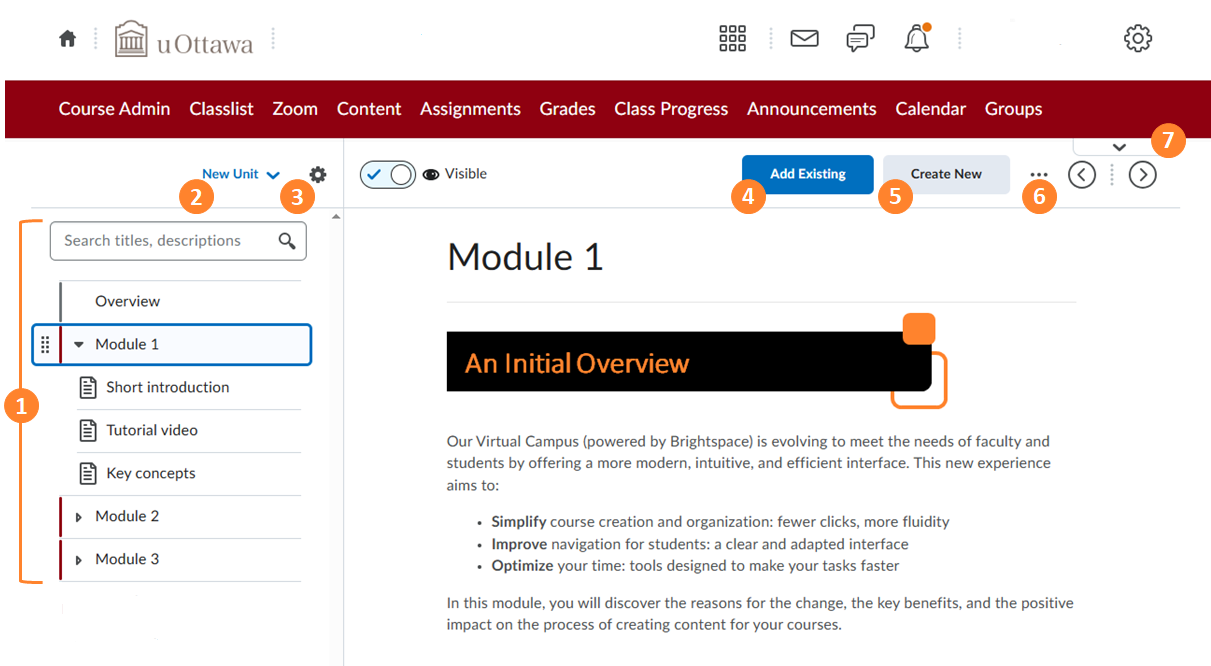
Expanded module with course materials.
New Unit adds a new unit to the course.
Course options provides options to Preview as a Student, and View Reports.
Add Existing display full-screen pages with options for inserting existing materials.
Create New display full-screen pages with options for creating new materials or, adding a new lesson.
When you click the (...) Options menu and select Edit for a unit, lesson, or folder, you can update its title, availability and due dates, and description.
Tab with the arrow allows you to switch between the classic interface and the new content experience.
Why use the NCE?
The NCE is designed to be more intuitive and user-friendly for both professors and students.
- Simplified navigation: professors using NCE report fewer questions from students about how to find materials.
- Improved visual clarity: icons, colour cues, and progress indicators make it easier to see remaining required activities.
- Modern workflow support: drag-and-drop reordering, visibility toggles, availability dates, and embedded media are all supported.
- Future-ready environment: NCE supports upcoming Brightspace innovations, such as enhanced activity displays and accessibility improvements.
Discover the new experience in video
Watch these short videos—they will give you a clear idea of the look and functionality of the new content experience. They will allow you to quickly explore the main improvements and better understand what to expect.
Navigating with ease
A modern, user-friendly, and simple look
Illuminate your journey with D2L Lumi
Inline Assessment Display Pages
Key Features & Workflow Changes
Terminology updates
- Modules → Units
- Topics → Lessons (containing Pages or Materials)
- Colour markers for Units help visually organize large courses
Navigation & student experience
- Students see a table of contents (TOC) on the left, listing all Units, Lessons, and Folders.
- Topics open in a full-page view for improved focus.
- After completing a Lesson or Unit, students see a progress summary.
- Required items display completion checkmarks; optional items are excluded from totals.
Professor workflow
- Create a Unit, add Lessons, then include Pages, files, links, or embedded media.
- Reorder content with drag-and-drop.
- Add availability and due dates directly in the content area.
- Switch between the Classic Content Experience and the New Content Experience (if opt-in is enabled for your course).
Considerations & Limitations
- Some features from the Classic Content Experience are not yet available (e.g., bulk edit, topic search in student view, certain description fields).
- Do not switch mid-semester, as the student interface changes and may cause confusion.
- Only professors and site administrators can toggle the NCE; students cannot change their view.
- The student view currently supports a single colour theme.
Best Practices for Design & Deployment
- Plan your content structure in advance: define Units, Lessons, and Folders consistently across courses.
- Use descriptive titles and icons to help students locate materials quickly.
- Set availability and release conditions to control pacing.
- Include an introductory “Getting Started” Unit explaining how to navigate your course.
- Check accessibility: verify compatibility with screen readers, mobile devices, and test how PDFs or PowerPoints display.
Rollout Checklist
Before activating NCE in your course:
- Create a development copy of your course in Brightspace (sandbox).
- Activate the NCE in this copy to explore its interface and organization.
- Compare the layout with your current course to identify differences.
- Review accessibility (screen reader, mobile, file rendering).
- Test as a student using the Demo Student role for an accurate view.
- Adjust your Units and Lessons to ensure clarity and consistency.
- Inform your teaching assistants of navigation differences.
When ready to go live:
- Communicate the change to students in advance.
- Avoid switching mid-semester.
- Contact TLSS for help, training, or troubleshooting.
- Share your feedback to support campus-wide adoption.
Summary
The New Content Experience (NCE) in Brightspace represents a forward-looking evolution in course design at the University of Ottawa. It brings a cleaner interface, improved navigation, and a more engaging experience for students.
Before enabling NCE in a live course, test it in a development space and confirm that your materials display as intended. The Teaching and Learning Support Service (TLSS) will provide training, documentation, and support to help professors confidently explore and adopt this new experience.
Frequently Asked Questions (FAQ)
What is the New Content Experience, and why would I want to use it?
The New Content Experience, also known as Lessons, offers a clean, minimalist design for educators setting up a course and for learners navigating materials. Instructors using it say it is more intuitive and easier to view course setup with color-coded folders. Students generally find it simple to navigate.
When did the New Content Experience become available?
The New Content Experience is currently available on an opt-in basis. However, D2L plans to make it the standard content tool in Brightspace in the future. When that happens, all courses will automatically use the NCE. The TLSS will provide training, documentation, and transition support well ahead of the change.
How do I turn on/off the New Content Experience?
To turn it on, go to the Content tab. If it’s a new course, a notification will appear asking if you want to enable the new experience. You can toggle the setting anytime using the arrow in the upper right corner under the course navbar. Switching does not cause any loss of content.
Note: Professor and student views differ. Use the Demo Student option for the most accurate student view.
Can students turn the New Content Experience on or off?
No. Students cannot switch their view of content. Their experience depends entirely on whether the instructor enables the New Content Experience.
How are modules and sub-modules different in the new experience?
The New Content Experience supports nested modules up to five levels deep. Top-level modules are called Units, followed by Lessons and Folders for sub-modules.
Can dates be added to Content items?
Yes. Date management is available for most topic types, including Units, Lessons, Folders, and uploaded files. Dates can be set within the topic or through Course Admin > Manage Dates.
Learners cannot see topics that are outside the date range. You can control visibility so that students see start dates without being able to submit before they open.
What features are missing in the New Content Experience?
The NCE focuses on simplicity and does not yet include all advanced features such as Overview, Bookmarks, or Bulk Edit. These may return in future updates.
Use Announcements to notify students of changes, and create HTML pages for missing features like folder descriptions.
Why do folder titles sometimes not show item counts?
If you place information in folder descriptions instead of adding files inside folders, counts won’t appear. Add files or HTML pages within folders to maintain functionality and student navigation.
Can module colors be changed?
Instructors can set a primary color through Course Admin > Navigation and Themes. The student view currently has a fixed color scheme that cannot be changed.
How does the Standards tool work in the New Content Experience?
The Standards/Learning Outcomes tool, enabled since Fall 2022, allows outcomes to be aligned with content. Progress percentages appear as outcomes are added, and gaps can be identified.
Where can I go for training and support?
Help documentation is available in the New Content Experience module within the Instructor D2L Self-directed Training site. Additional resources and video tutorials can be found in the D2L Help area.
{/accordion}